
-
-
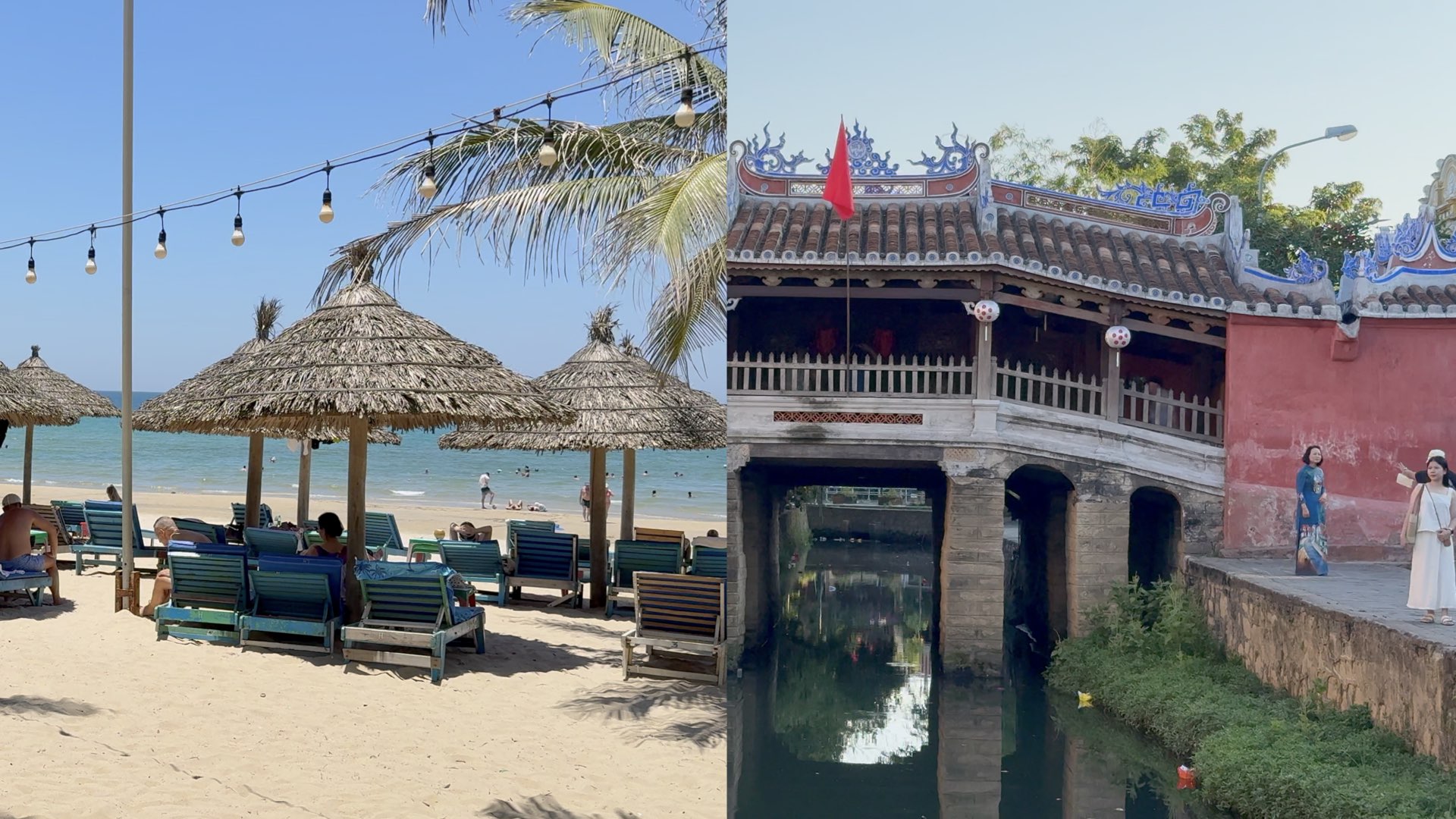
Da Nang & Hoi An 4 Day Itinerary for First-Time Visitors
2026/7/1 Central Vietnam travel, Da Nang 4 day itinerary, Da Nang travel guide, Dragon Bridge, Hoi An Ancient Town, Hoi An day trip, Hoi An itinerary, Hoi An travel guide, Marble Mountain, My Khe Beach, My Son Sanctuary, Son Tra Peninsula, TravelPassport, Vietnam itinerary, Vietnam travel tips, Vietnam vacation
A practical 4-day itinerary covering My Khe Beach, Marble Mountains, Son Tra Peninsula, My Son Sanctuary, and Hoi An Ancient Town. This itinerary is designed for travelers who: Are visiting Da Nang for the first time Have 4–5 days available Want to experience both Da Nang and Hoi An When planning a trip to Central Vietnam, many travelers wonder: Should I visit both Da Nang and Hoi An? How many days do I need? Should I stay overnight in Hoi An? Are Marble Mountains and My Son Sanctuary worth visiting? After visiting Da Nang and Hoi An myself, I found ...
-
-
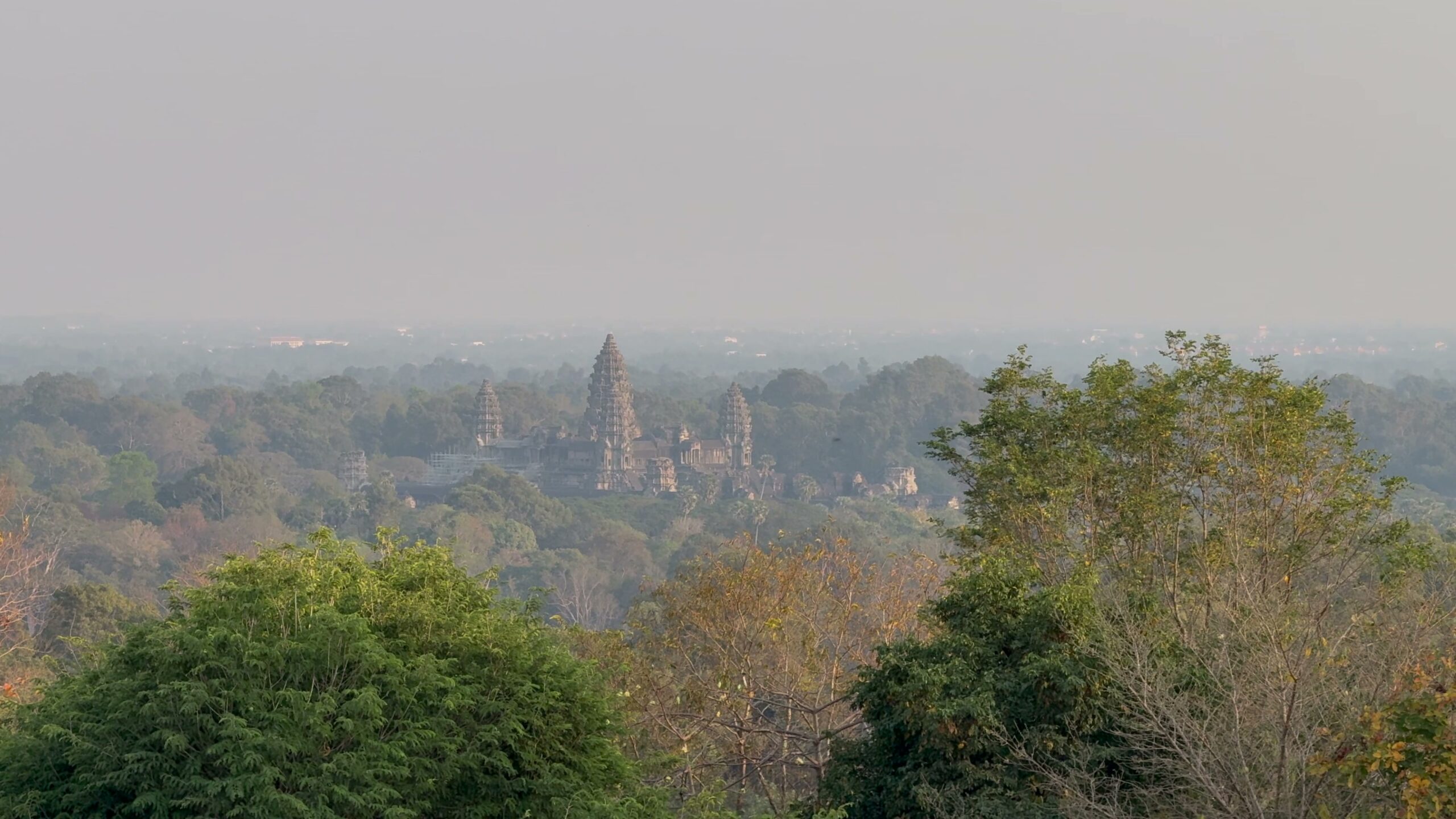
What to Prioritize in Siem Reap: Angkor Wat, Bayon, Ta Prohm & Smart Itinerary Planning
2026/5/18 Angkor National Museum, Angkor Temples, Angkor Wat, Angkor Wat Sunrise, Bayon Temple, Cambodia itinerary, Cambodia Travel, Phnom Bakheng, Pub Street, Siem Reap, Siem Reap blog, Siem Reap itinerary, Siem Reap travel guide, Ta Prohm, Temple hopping, Things to do in Siem Reap, Travel fatigue, Travel itinerary, Travel Planning, TravelPassport
When planning a trip to Siem Reap, it’s tempting to try to see everything. But once you actually arrive, you quickly realize how physically demanding the Angkor area can be. The heat is intense, distances between temples are longer than they look on maps, and decision fatigue builds up faster than expected. What mattered most on this trip wasn’t simply deciding where to go. It was deciding what deserved priority before the day even started. In this article, I’ll break down the places that felt truly worth prioritizing in Siem Reap — and why leaving space in your itinerary may ...
-
-
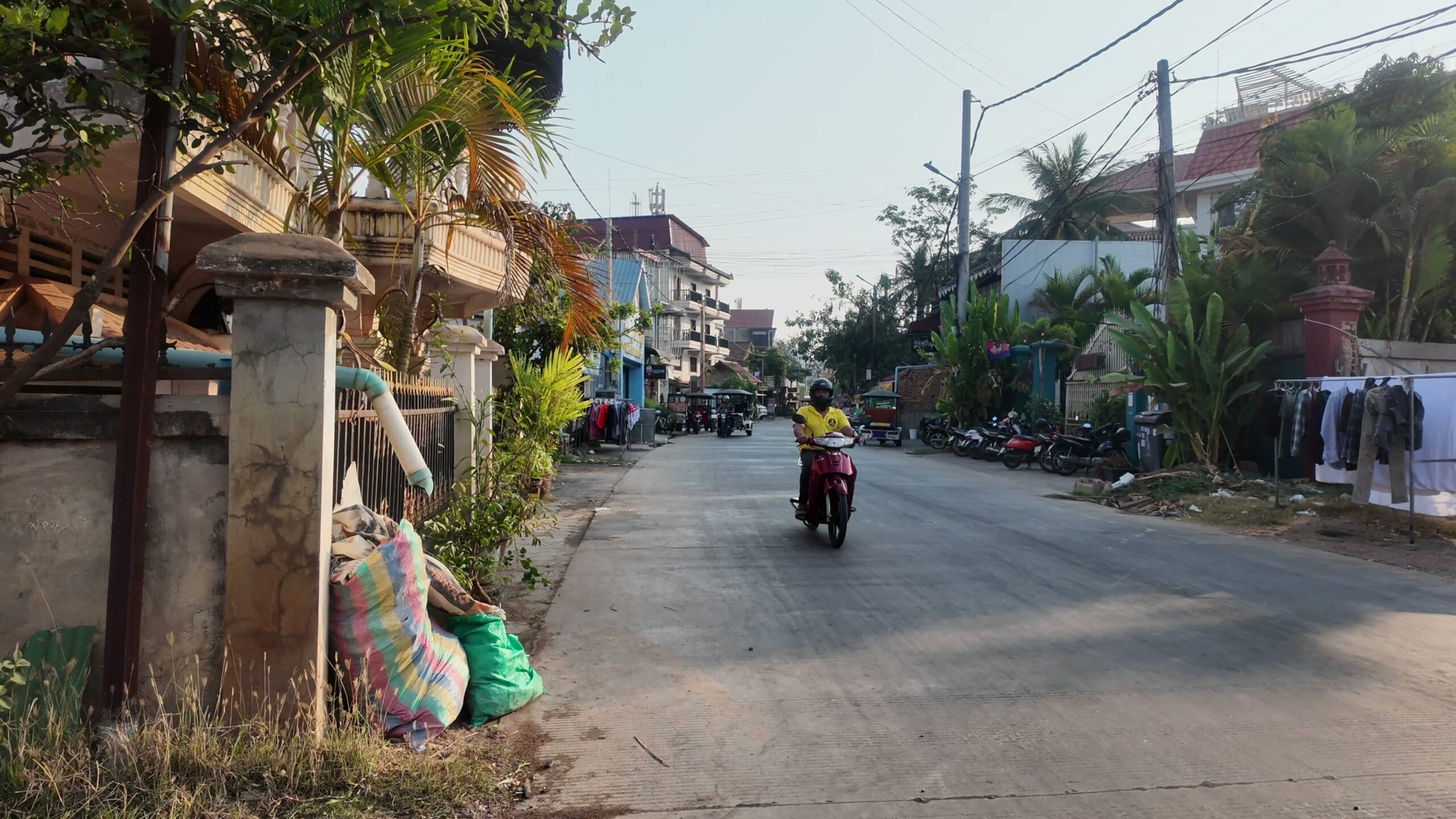
Siem Reap Beyond the Temples
2026/5/18 Angkor National Museum, Angkor Wat, Cambodia, Cambodia 4K, Cambodia Travel, City Walk, Pub Street, Siem Reap, Siem Reap River, Siem Reap Travel, Slow Travel, Southeast Asia Travel, Travel Planning, Travel Vlog, TravelPassport
When people think of Siem Reap, they usually picture Angkor Wat and the surrounding temple ruins. But after actually staying there, what stayed with me most wasn’t only the temples. The quiet riverside mornings. The intense afternoon heat. The city slowly lighting up after sunset.Siem Reap felt less like a place to “check off attractions,” and more like a city whose entire atmosphere changes throughout the day. During this trip, I realized that the experience became much easier once I stopped trying to maximize efficiency and started paying attention to timing instead — when to walk, when to rest, and ...
-
-
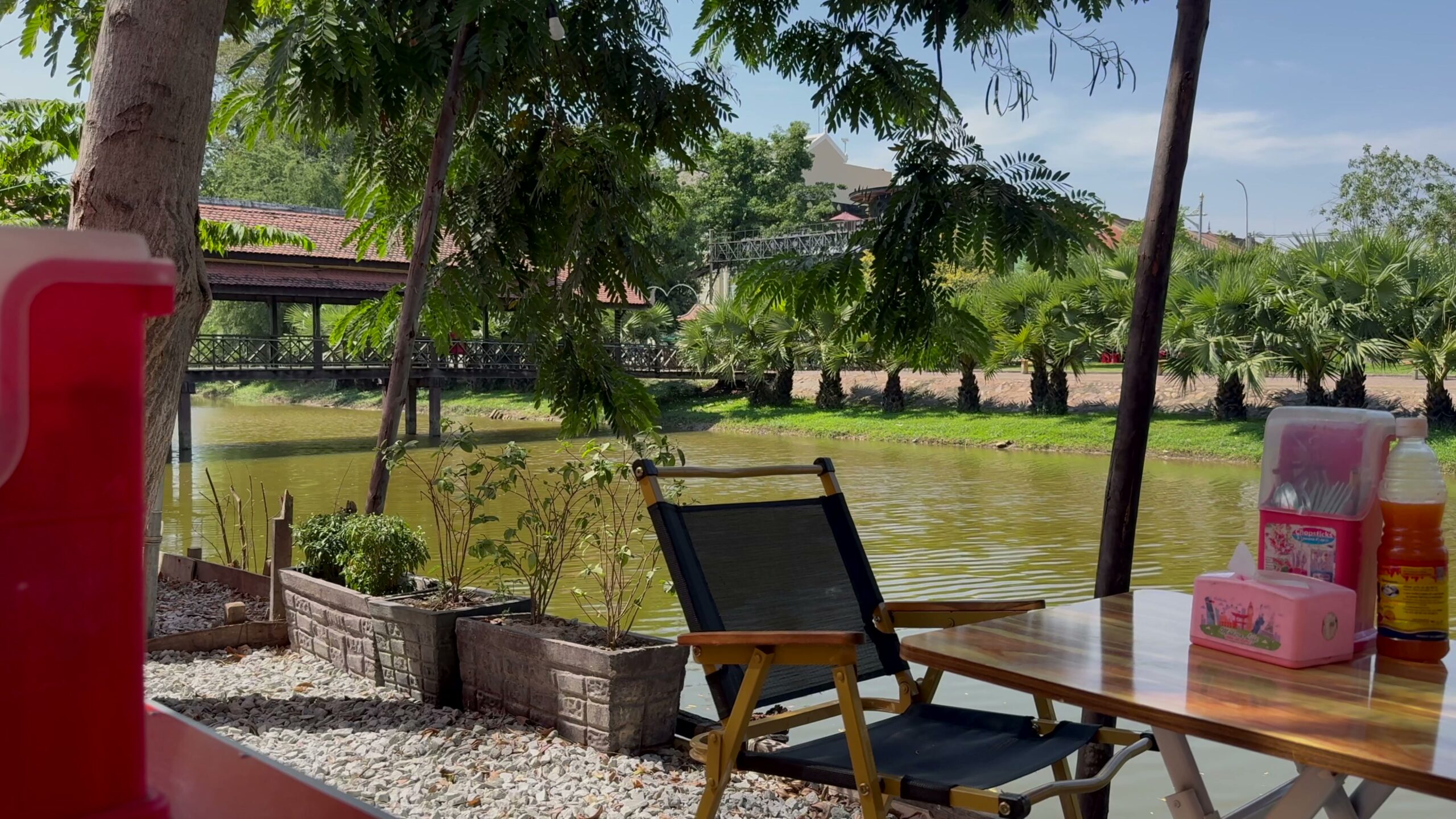
Where I Ate in Siem Reap: Cafés and Restaurants That Helped During Angkor Wat Travel
2026/5/18 Angkor Wat, Angkor Wat Travel, Cafe, Cambodia, Cambodia Cafe, Cambodia Travel, Food, Khmer Food, Local Food, Pub Street, Restaurant, Siem Reap, Siem Reap Food, Siem Reap Restaurant, Travel Tips
Food in Siem Reap turned out to be more than just “something between sightseeing spots.” After actually walking through Angkor’s ruins in the heat, I realized that constantly deciding “Where should I eat next?” became surprisingly exhausting. The restaurants and cafés I ended up appreciating most were not necessarily the famous ones, but the places that helped me recover, slow down, and reset. One thing that made Siem Reap especially easy to travel in was that most restaurants accepted credit cards, so I rarely needed to carry large amounts of cash except for small street food stalls. During this trip, ...
-
-
Why Travel Feels Exhausting: What Angkor Wat Taught Me About Decision Fatigue
2026/5/17 AI Travel Planning, Angkor Archaeological Park, Angkor Wat, Cambodia Travel, Decision Fatigue, Digital Travel Tools, Flexible Travel, Siem Reap, Slow Travel, Travel Mindset, Travel Planning, Travel Productivity, Travel Tips, Tuk Tuk Travel
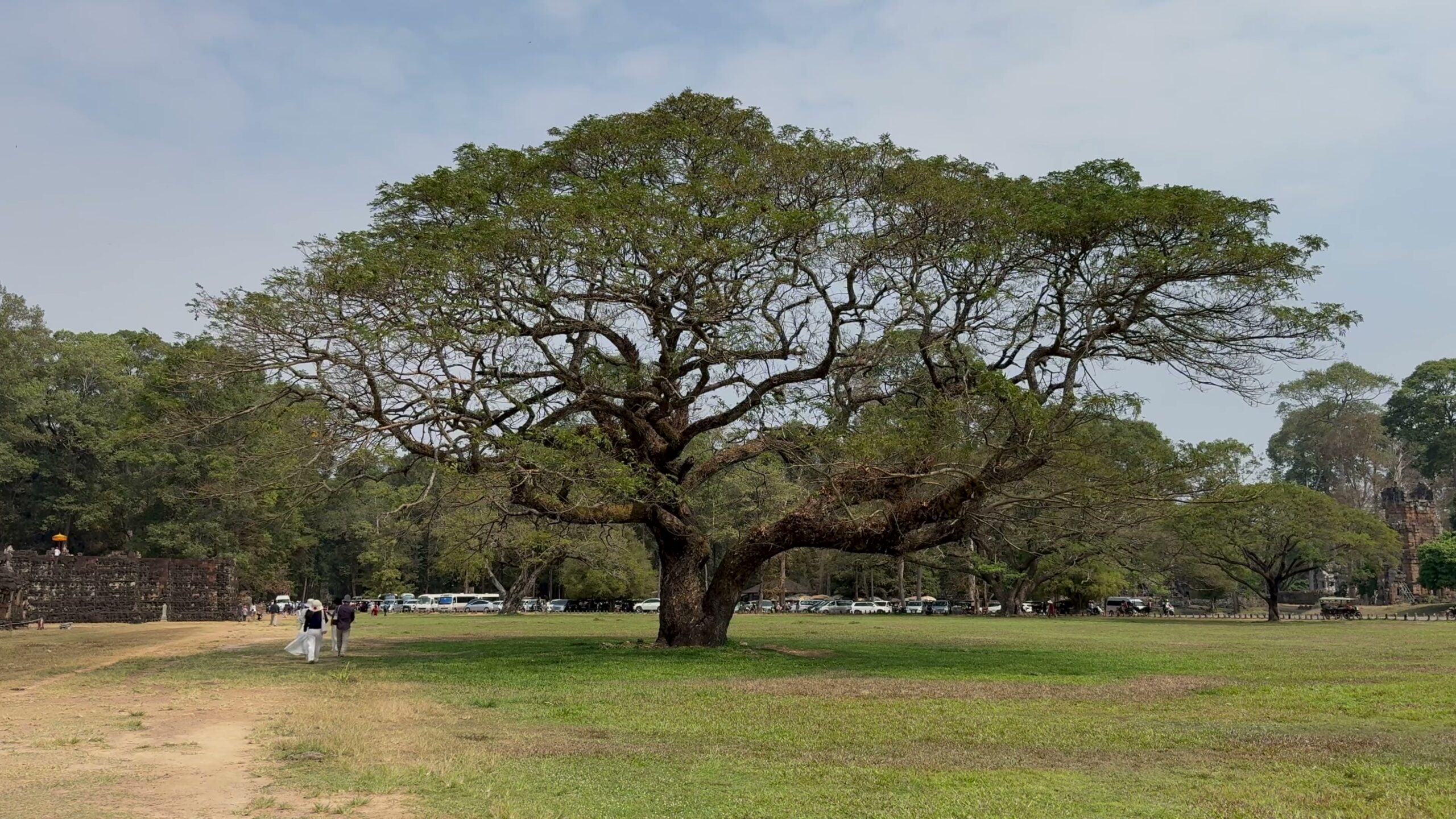
One of the biggest things I realized during my Angkor Wat trip was that travel exhaustion wasn’t really caused by distance. I later realized this was a form of travel decision fatigue. What made the trip mentally heavy was constantly asking myself: “What should I do next?” Heat, crowds, fatigue, tuk-tuk transfers, changing schedules. In Siem Reap, there are many moments where you naturally need to adjust your plans on the fly. What made the trip feel lighter wasn’t sticking perfectly to the original itinerary. It was being able to clearly understand why I was changing it. In this article, ...
-
-
Is Beng Mealea Worth Visiting?
2026/5/17 Adventure travel, Angkor ruins, Angkor Wat, Beng Mealea, Beng Mealea temple, Cambodia itinerary, Cambodia Travel, Hidden Temple, Siem Reap, Siem Reap Guide, Southeast Asia Travel, Temple exploration, TravelPassport, Tuk Tuk, World heritage
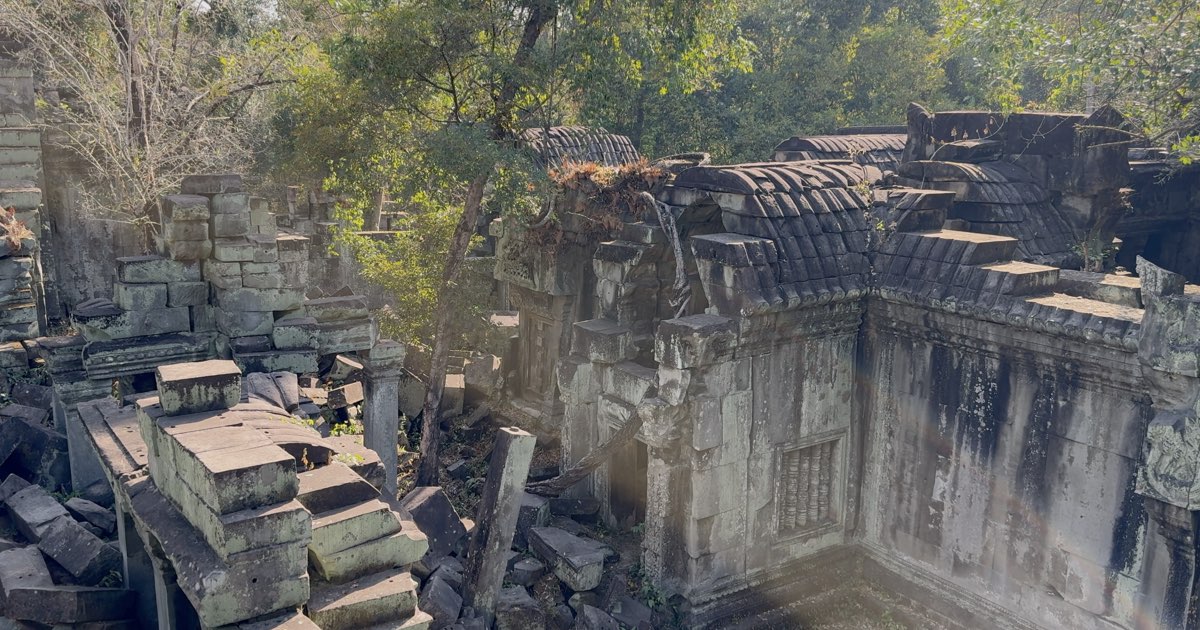
Beng Mealea felt completely different from the temples around Angkor Wat. Instead of a polished world-famous heritage site, it felt more like discovering the remains of a lost temple swallowed by the forest. Walking through the ruins felt less like sightseeing and more like exploring. At the same time, Beng Mealea is not somewhere you casually add between major Angkor stops. It sits far from central Siem Reap, and getting there becomes part of the experience itself. In this article, I’ll share what Beng Mealea is actually like, how it differs from Angkor Wat, what the journey feels like, and ...
-
-
Best Time for Angkor Wat Sunrise
2026/5/15 Angkor Archaeological Park, Angkor Wat, Angkor Wat Sunrise, Cambodia Travel, Cinematic Travel, Siem Reap, Siem Reap Guide, Southeast Asia Travel, Sunrise, Sunrise Photography, Temple Photography, Temple Sunrise, Travel Planning, TravelPassport, Tuk Tuk, World heritage
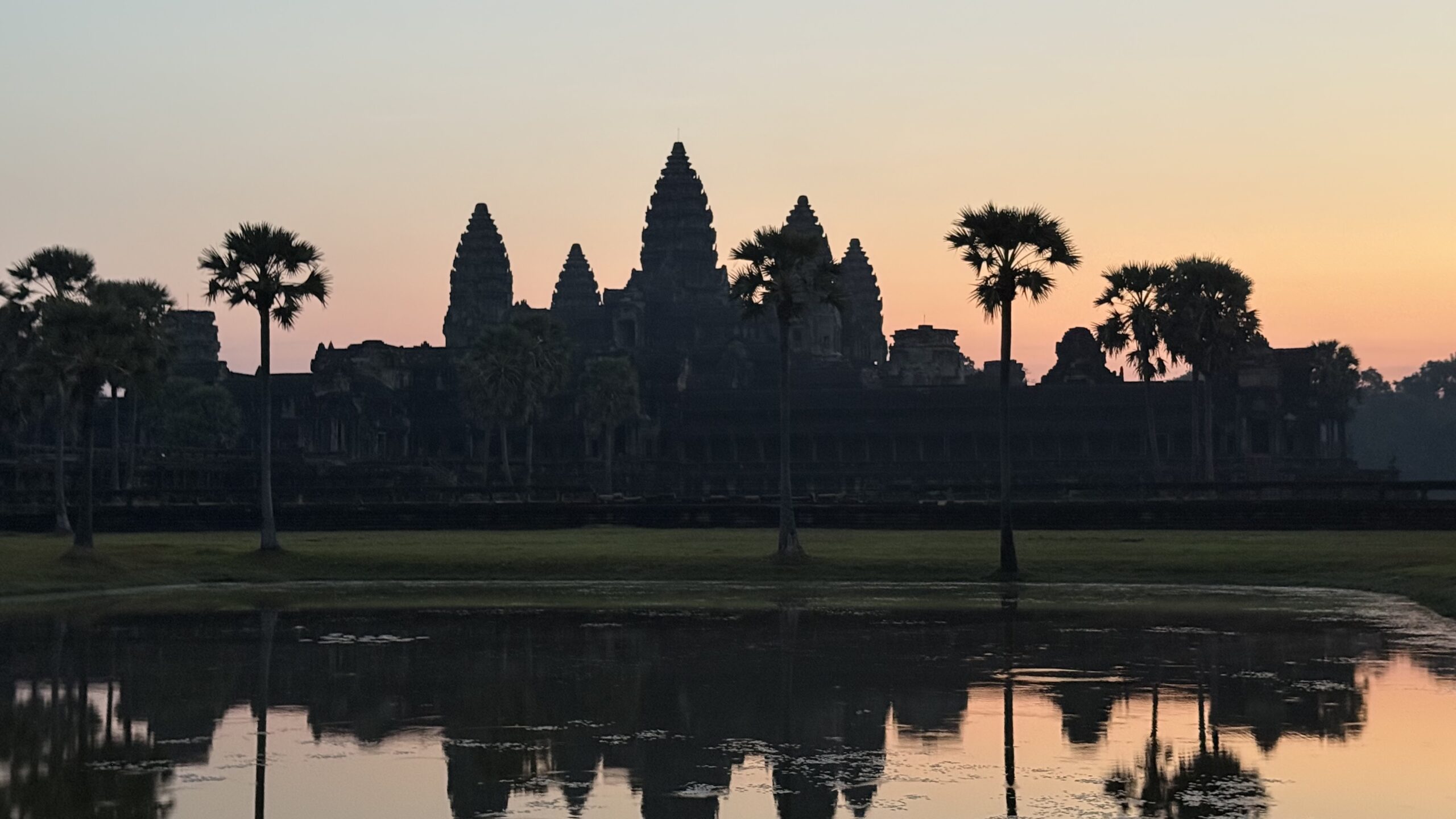
Watching sunrise at Angkor Wat felt less like a single “sunrise event” and more like slowly watching the world wake up from darkness. Once I actually experienced it, I realized the important part was not only what time to arrive. Where to wait, when to move, where to go after sunrise — there are surprisingly many small decisions packed into a short period of time. Without preparation, the morning can become more exhausting than expected. In this article, I’ll share what helped most during my real Angkor Wat sunrise experience, including practical preparation tips, crowd strategy, and what it felt ...
-
-
Small Circuit vs Big Circuit – Which Should You Choose?
2026/6/22 Angkor itinerary, Angkor Temples, Angkor Wat, Big Circuit, Cambodia 4K, Cambodia Travel, Siem Reap, Small Circuit, Southeast Asia Travel, Temple guide, Temple Tour, Travel Planning, TravelPassport, Tuk Tuk, World heritage
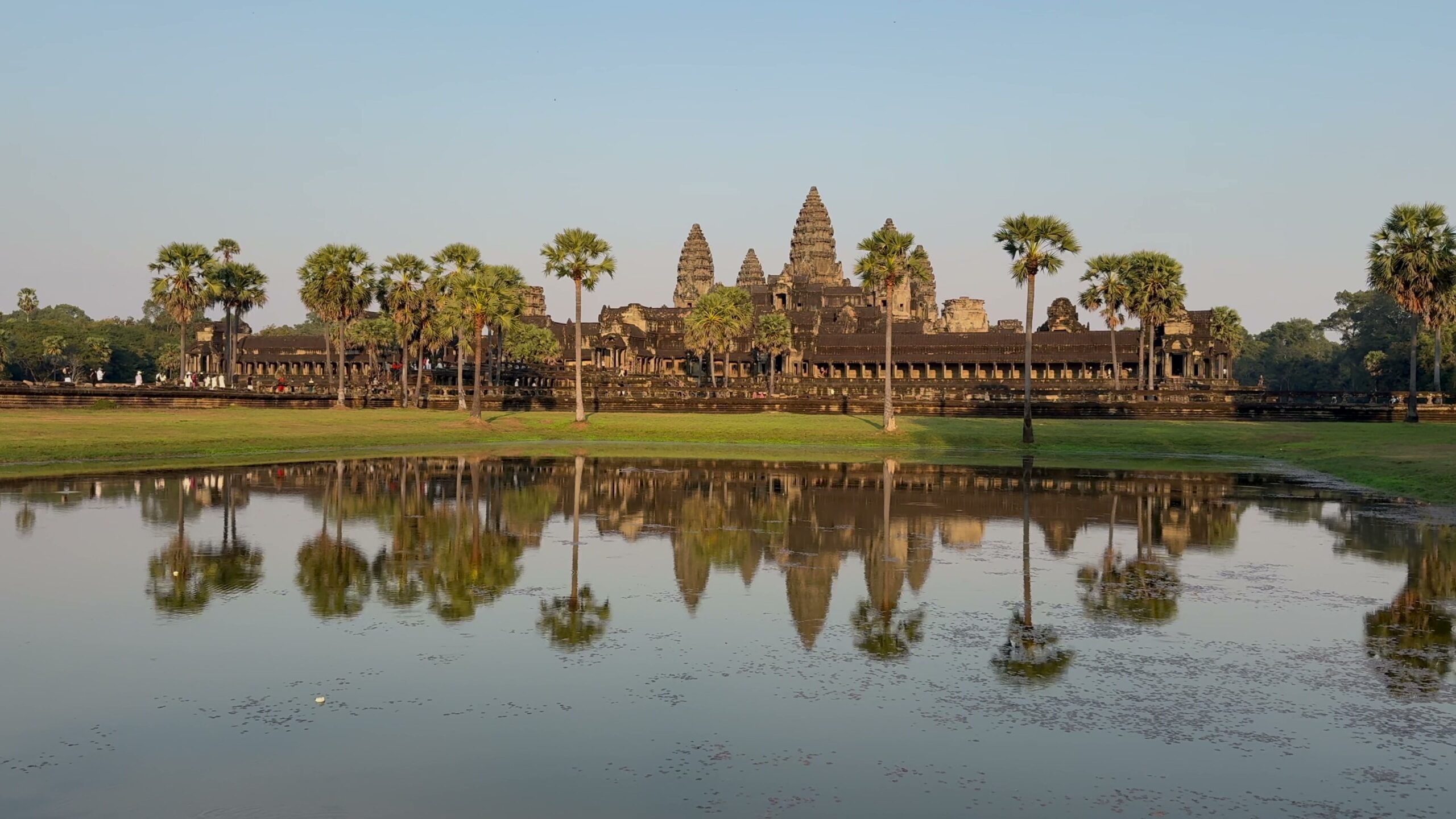
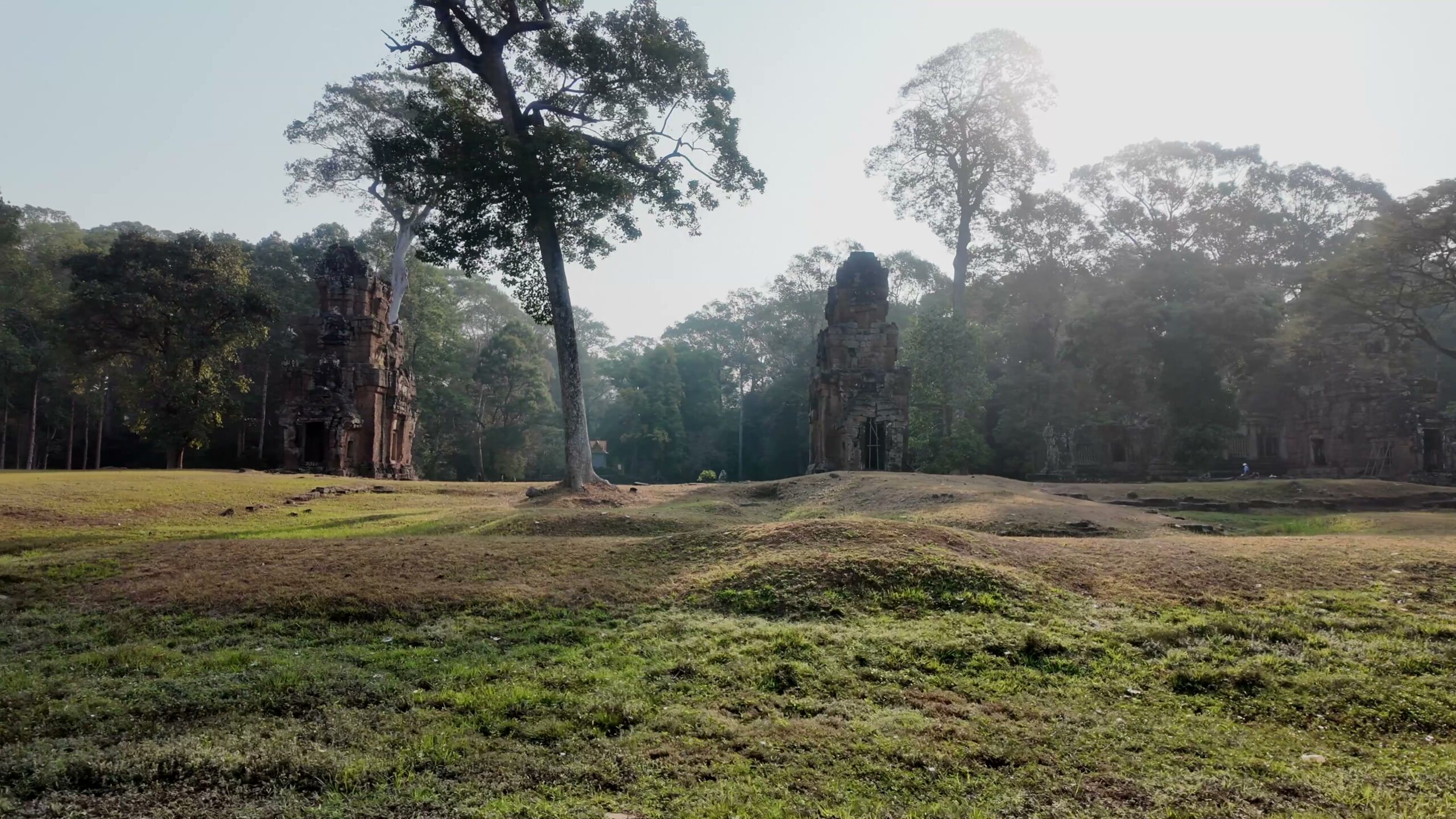
When planning an Angkor Wat trip, you will quickly run into the terms “Small Circuit” and “Big Circuit.” But once you actually start researching, the differences are not always clear. Which one is better for first-time visitors? How physically demanding are they? And how different do they really feel in practice? This article compares the Small Circuit and Big Circuit based on the actual temple routes I visited in Siem Reap. You can also watch the real travel footage of both routes below. https://youtu.be/1nchvXZwDJY What Is the Difference Between the Small Circuit and Big Circuit? First, it is important to ...
-
-
What Tuk Tuk Travel Around Angkor Wat Is Really Like
2026/5/15 Angkor Temples, Angkor Wat, Big Circuit, Cambodia Travel, First Time Cambodia, Grab Cambodia, Siem Reap, Siem Reap Travel, Small Circuit, Southeast Asia Travel, Temple Tour, Travel Planning, Travel Tips, TravelPassport, Tuk Tuk
At first, taking a tuk tuk around Angkor Wat felt slightly intimidating. Questions kept coming up: How much should it cost? Can I trust the driver? Will I get stranded somewhere? Can I communicate well enough in English? But after actually using tuk tuks in Siem Reap for several days, it became one of the best parts of the trip. Compared to repeatedly calling Grab between temples, having the same driver waiting nearby made the entire Angkor experience feel calmer and more flexible. The biggest lesson was that comfort came less from getting the cheapest price and more from creating ...
-
-
What Siem Reap Night Walks Feel Like
2026/5/15 Angkor Wat, Cambodia, Cambodia 4K, Cambodia Travel, Cinematic Travel, Decision Fatigue, Night Market, Night Walk, Pub Street, Riverside Night Market, Siem Reap, Siem Reap Nightlife, Slow Travel, Southeast Asia Travel, Street Food, Travel Planning, Travel Style, Travel Tips, TravelPassport, Tuk Tuk, Walking Tour
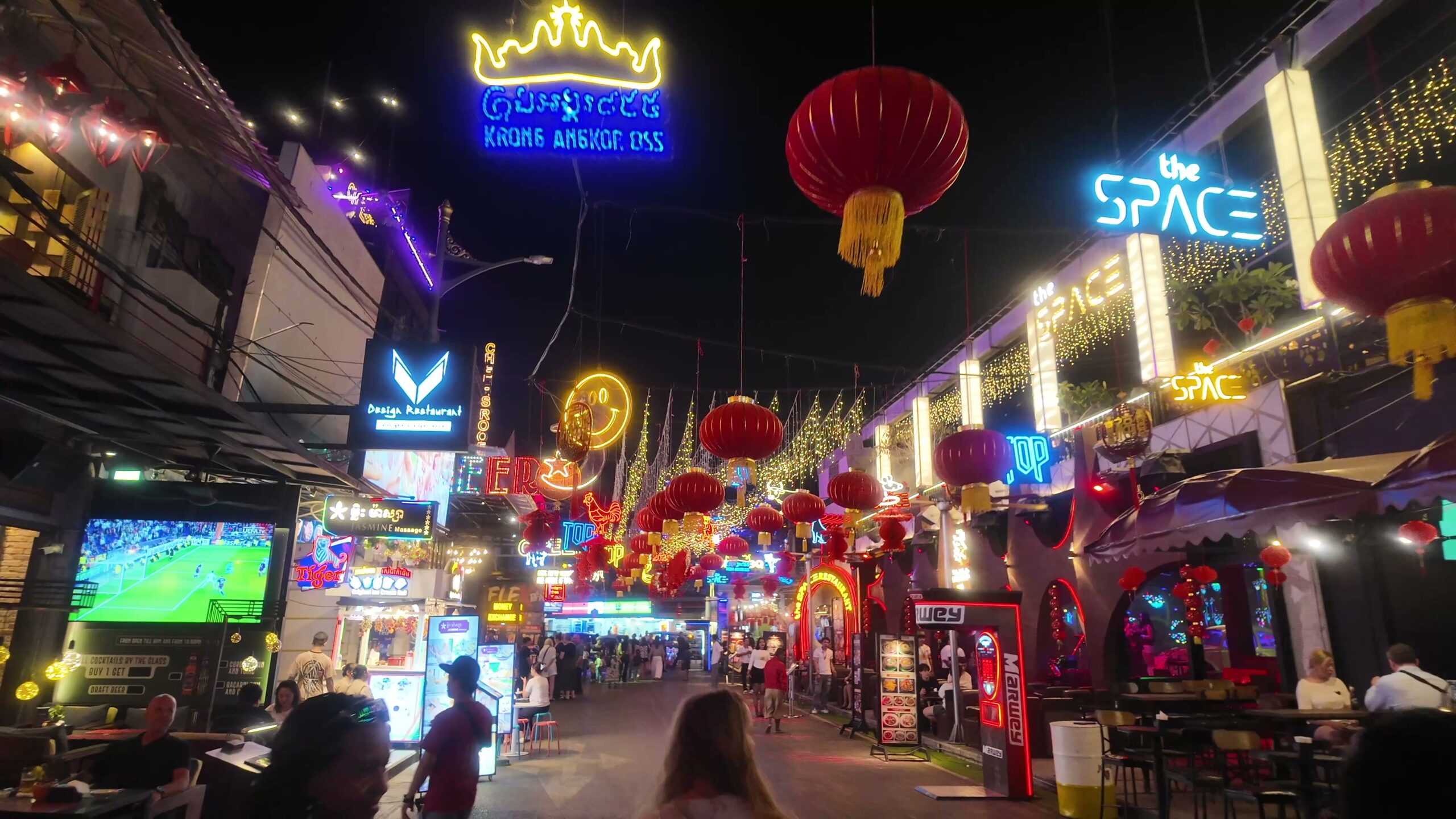
At night, Siem Reap shifts constantly between noise and calm. That contrast is part of what makes the city memorable. But after a while, the real fatigue comes less from walking and more from deciding — where to turn next, where to eat, and when to head back. https://youtu.be/QweguK9oBTg ▶ Watch in video: entering the night-walk rhythm (00:20) Street energy changes quickly, so decision timing matters more than speed. Where night decisions start to stack Night routes create constant context switching: continue walking, change blocks, call a ride, or return now. Each choice is small, but the accumulation is tiring. ...